
Step by step
- Open FolioBind and tap Choose Files on the Files tab, or share a
.txtfile to FolioBind from another app. - Check the chapter settings. Auto works for most books; pick a language or Custom if your headings are unusual.
- Check the title, author and language. FolioBind fills them in from the file and detects the language on the device.
- Choose a cover: the first image in the text, a generated title card, or your own picture.
- Tap Generate. The finished EPUB appears on the Output tab with its validation result, ready to preview and share.
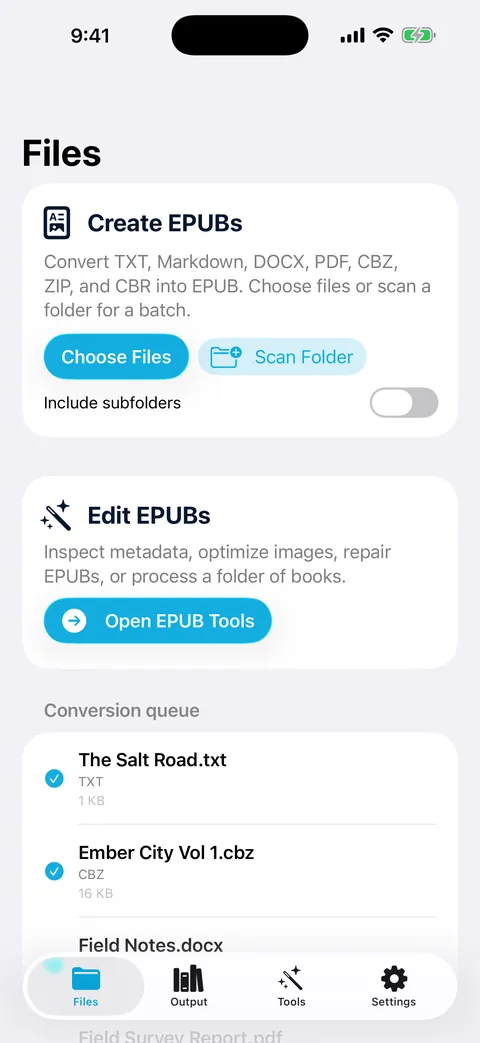
Add TXT, Markdown, DOCX, PDF or comic archives to the queue.
How chapter detection works
FolioBind starts a new chapter at each line that looks like a heading. In Auto mode it recognises:
- English: “Chapter 7”, “Chapter Seven – The Storm”, “Part II”, “Book 3”, “Prologue”, “Epilogue”, “Appendix”
- Chinese: “第十二章”, “第3节”, “第一卷”, “序章”, “番外”, “后记”
- Japanese: “第3話”, “第十二章”, “プロローグ”, “エピローグ”
- Korean: “제5장”, “제12화”, “프롤로그”
- Spanish, French, Indonesian, Malay, Dutch, Portuguese and Russian equivalents such as “Capítulo 4”, “Chapitre 4”, “Bab 4”, “Hoofdstuk 4” and “Глава 4”
Numbers can be digits, Roman numerals, Chinese numerals or words such as “Three”. A title can follow the number after a space, with or without a dash or colon: “Chapter 7 – The Storm”, “Chapter 7 : The Storm”, “第十二章 归途”. A colon written directly after the number (“Chapter 7: The Storm”) isn't recognised in Auto mode; use Custom with Chapter as Start and : as End.
When your headings are different
Choose Custom and type what comes before and after the chapter number. For headings like “Episode 12 —”, enter Episode as Start; for “[12]”, enter [ as Start and ] as End. For Markdown files, choose Markdown headings to split on lines that start with #.
Chinese, Japanese and Korean text files
Older novels are often saved as GBK/GB18030, Big5 or Shift_JIS rather than UTF-8. FolioBind detects these automatically; if the preview shows garbled characters, pick the encoding by hand. You can also convert between Simplified and Traditional Chinese, and lay out the book vertically, right to left.
Limits
- The free version saves one finished book (or one edit) per day. Pro is unlimited and adds batch conversion.
- Validation is a structural check inside the app, not EPUBCheck.
- Very unusual heading styles may need Custom mode.