
Inspect first
Open the EPUB from the Tools tab. FolioBind reads its structure and tells you what's wrong: a missing container or mimetype, manifest entries that point nowhere, or a table of contents that's missing or out of date. Inspecting is free and unlimited.
Repairs you can run
- Rebuild structure: recreate the container, mimetype and manifest.
- Rebuild the table of contents: EPUB 3 navigation and, if needed, an EPUB 2 NCX.
- Upgrade EPUB 2 to EPUB 3.
- Embed remote images so the book works offline.
- Remove embedded fonts and reset publisher styles when a book looks wrong in your reader.
Fix metadata, one book or a whole folder
Edit title, subtitle, authors, series, publisher, language, date, subjects, identifiers, rights, reading direction, description and cover. Bulk editing applies changes to many books at once.
Check the result
Repaired books show a Validated badge when they pass FolioBind's structural check. This check is built into the app; it is not the same as the official EPUBCheck validator, and FolioBind doesn't claim compatibility with every reading app.
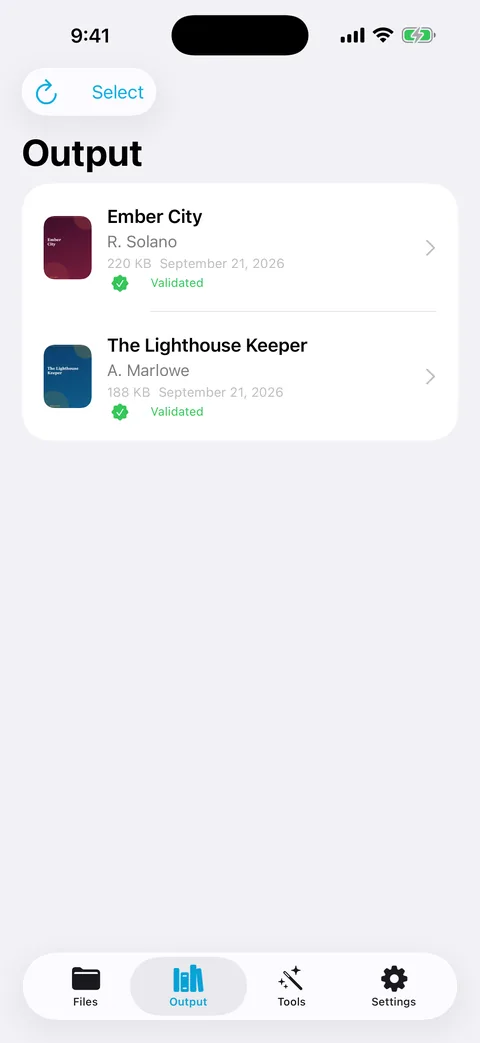
Finished and repaired books with their validation status.